> For the complete documentation index, see [llms.txt](https://docs.nannyml.com/cloud/llms.txt). Markdown versions of documentation pages are available by appending `.md` to page URLs; this page is available as [Markdown](https://docs.nannyml.com/cloud/model-monitoring/reporting/managing-reports.md).
# Managing reports
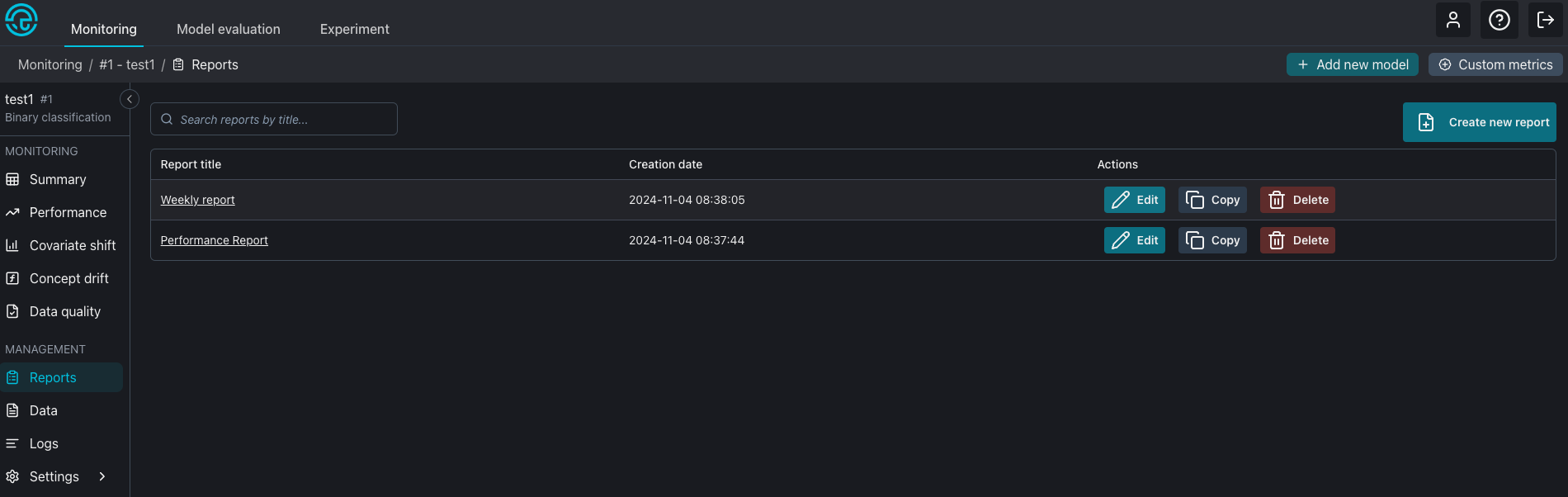
When reports are created, the user can manage them from the reports page. The reports will appear sorted by creation date, the user can filter reports by name to find the desired one. For each report, the user have these options; View, Edit, Copy, and Delete.
### View and Edit
These options leads the user to the selected Report's page. There, the user can edit or export the Report. View button is on the Report's name, user can click on the report name and be redirected to the report. The same behavior happens when Edit button is clicked.
### Copy
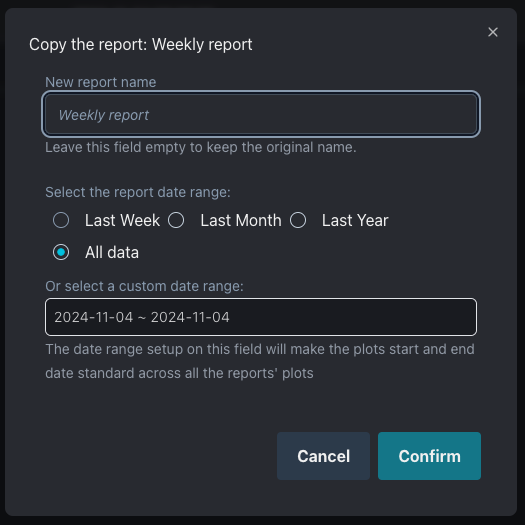
Copy feature is useful for re-using plots and explanations from one existing report. When the Copy button is clicked, the user is presented to a modal similar to the Create new report button, except the template selection.
If the user leaves the Report name empty the current report will be re-used, but will have ' - Copy' appended to it to mark which report is the copied one.
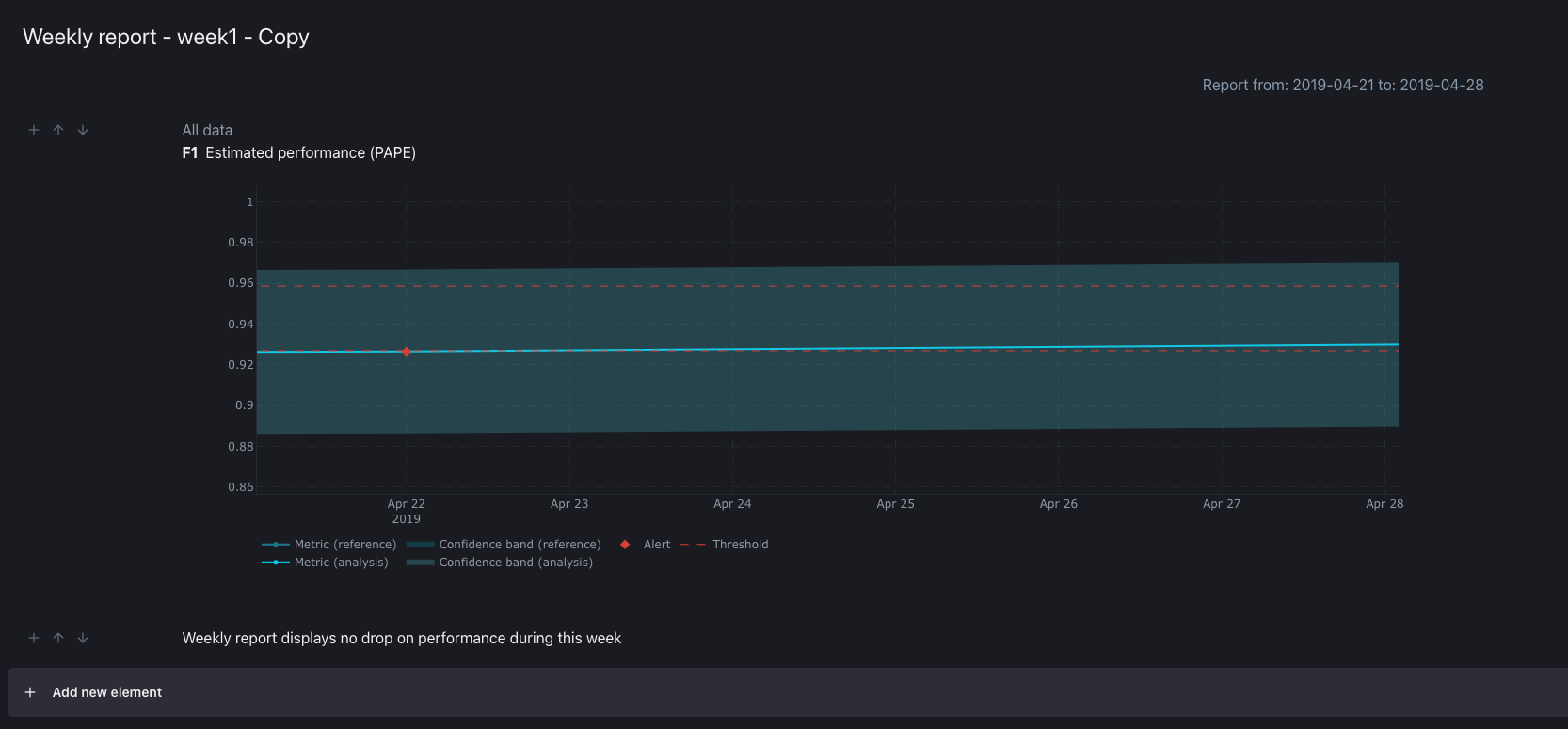
User can select a different time range for the copied report. By doing it, the plots of the copied report will follow the new time range but the text information will stay the same. The new time range may present alerts that may require the report's text and information to be updated.
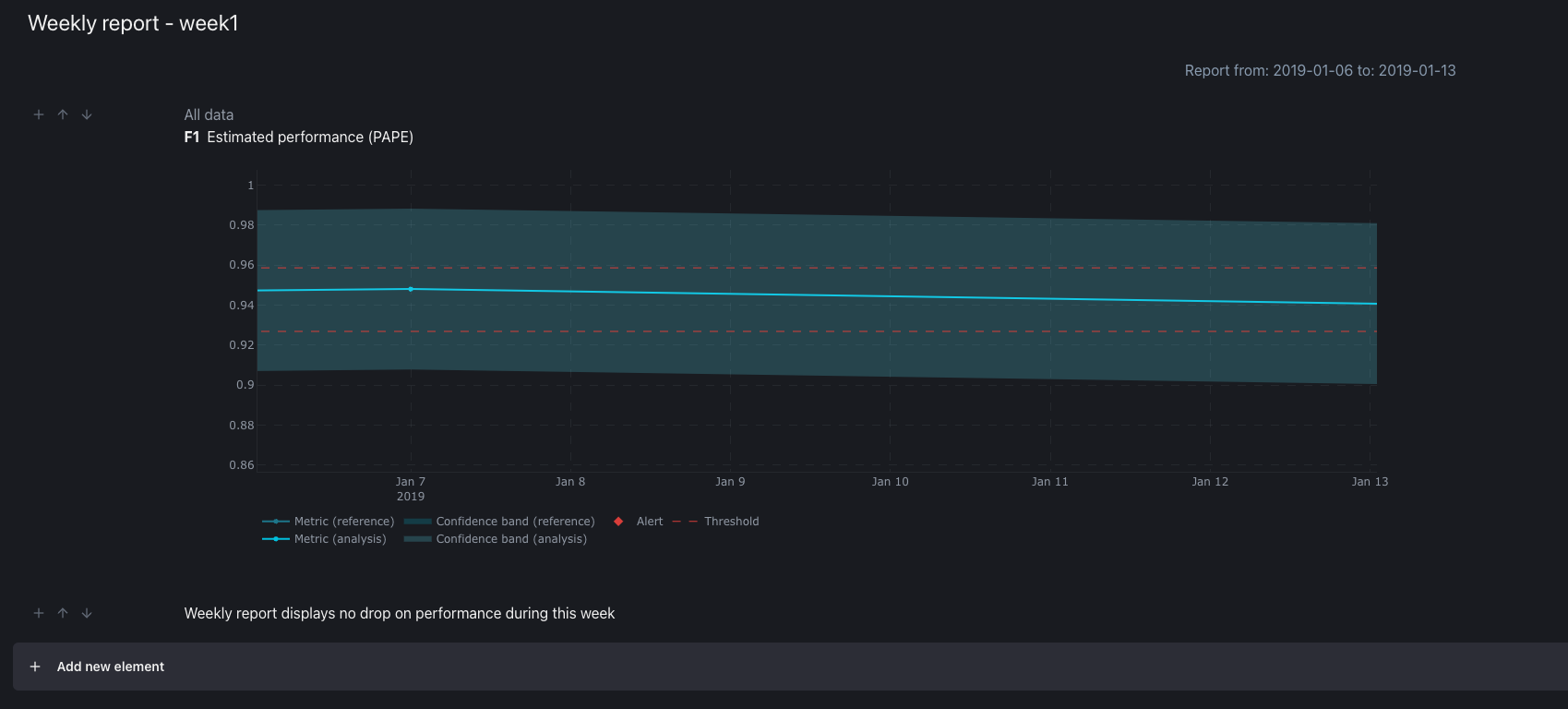
Original report
Copied report, one alert is identified, the text information is just copied to the new report.
### Delete report
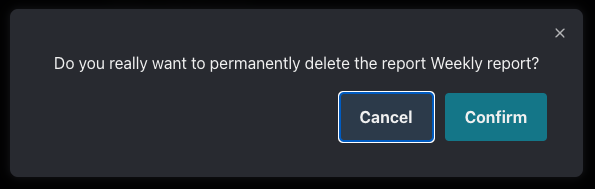
When the user clicks on the Delete button, a Pop Up appears to confirm the report deletion.
Clicking on Confirm, deletes the report. Clicking on Cancel, cancels the operation the report is still kept.