# Enabling access to storage

## Using role assignments

As a part of the deployment process, NannyML Cloud creates a managed identity aptly called **nannyml**.&#x20;

By granting that managed identity the correct roles and permissions, you can have the NannyML Cloud instance read data from a storage container!<br>

### Setting permissions on your storage account

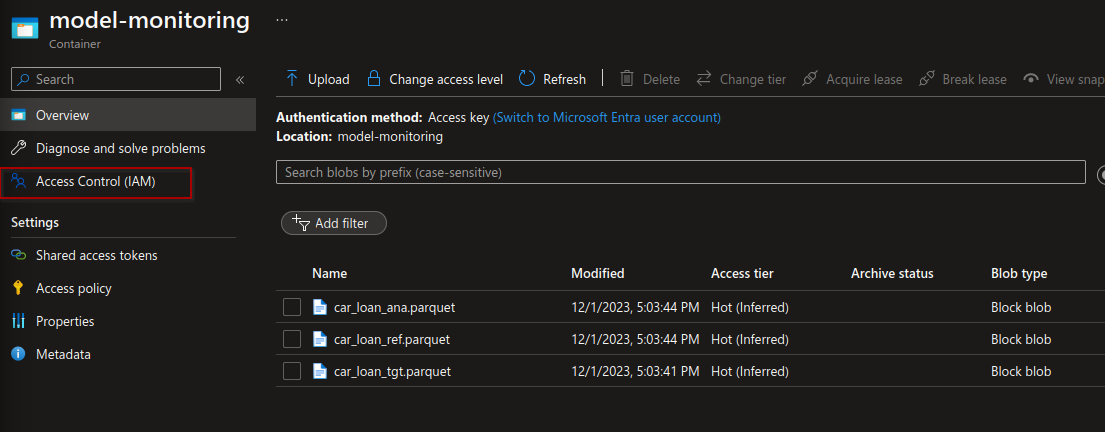
1. Navigate to your storage account using the Azure portal. In this example, we have a storage account with a container called **model-monitoring.** The access level has been set to private.\
   \
   There are three files present, representing reference data, analysis data, and target data.

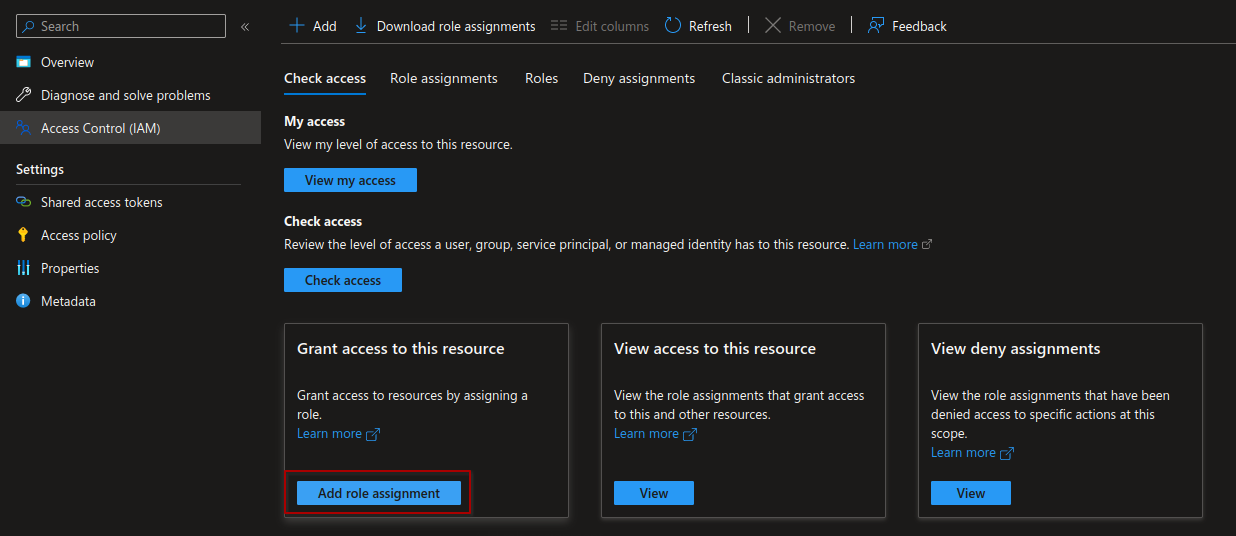
2. Navigate to the **Access Control (IAM)** pane.<br>

   <figure><img src="https://content.gitbook.com/content/cgDbLHPAHMe3kHJeobtk/blobs/7H2THADiUBInwpn754D5/image.png" alt=""><figcaption><p>Accessing the access control settings for our storage container</p></figcaption></figure>

3. Now click the **Add role assignment** button in the bottom left corner.<br>

   <figure><img src="https://content.gitbook.com/content/cgDbLHPAHMe3kHJeobtk/blobs/uoWX0TtY07A2be4E2mdY/image.png" alt=""><figcaption><p>Navigating to the role assignment screen</p></figcaption></figure>

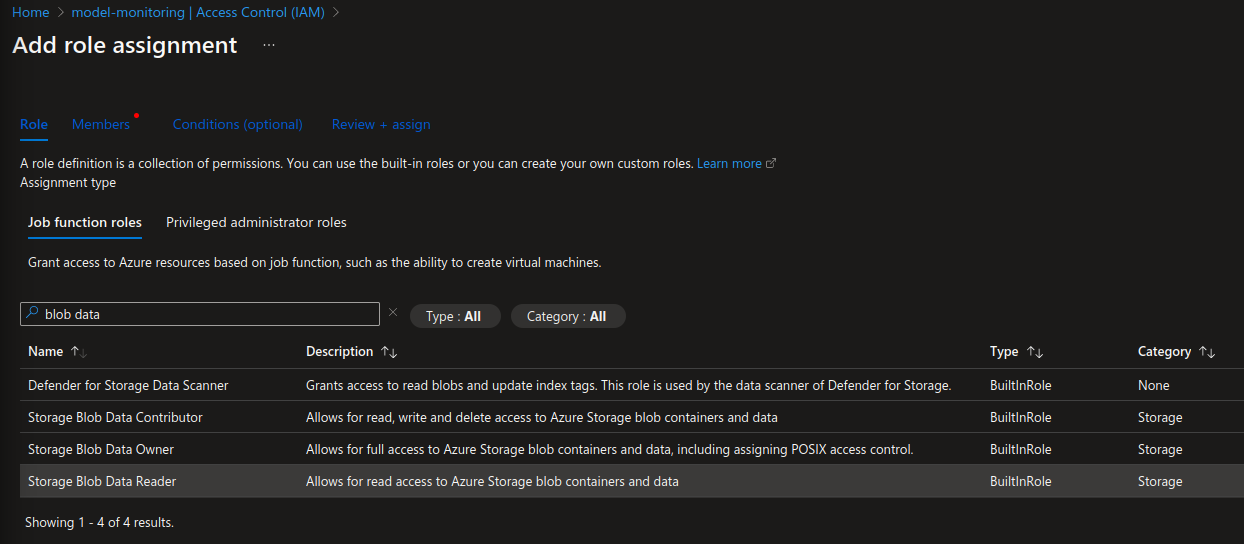
4. This window will give you a very long overview of available roles. You can select any applicable role here, but something like **Blob Data Reader** should give sufficient permissions to read the data in this storage container.\
   \
   Search for the role using the search bar, select it and hit the **Next** button in the bottom left corner.\ <br>

   <figure><img src="https://content.gitbook.com/content/cgDbLHPAHMe3kHJeobtk/blobs/CWr89iK6Pjqies5xoG1a/image.png" alt=""><figcaption><p>Selecting a role to assign</p></figcaption></figure>

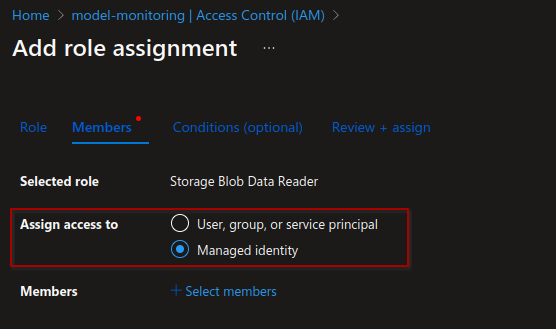
5. Now you'll select the member to assign the role to. In this case you'll assign it to a **managed identity**, so select that option. Then hit the **+ Select members** link to open up the search pane.\ <br>

   <figure><img src="https://content.gitbook.com/content/cgDbLHPAHMe3kHJeobtk/blobs/sjoSCwAvAhLNeMFOsjEt/image.png" alt=""><figcaption><p>This is the managed identity you're looking for</p></figcaption></figure>

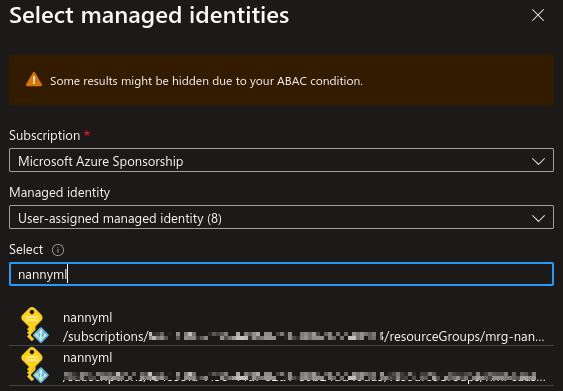
6. In the search pane, first, select the subscription under which the NannyML Cloud managed application was deployed.\
   \
   In the **Managed identity** dropdown, select the **User-assigned managed identity** option. \
   \
   Finally, in the search bar under the **Select** header, filter for **nannyml** and select the correct option.<br>

   <figure><img src="https://content.gitbook.com/content/cgDbLHPAHMe3kHJeobtk/blobs/v3N0Ewmj6YRdPjtKweHu/image.png" alt=""><figcaption><p>Searching for the correct managed identity</p></figcaption></figure>

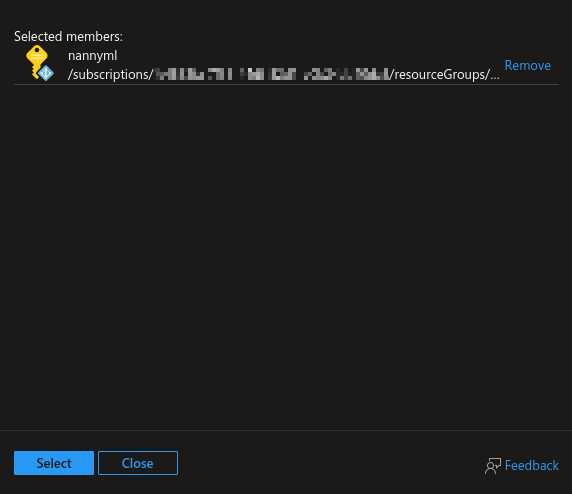
7. Confirm the selected member and hit the **Select** button.\ <br>

   <figure><img src="https://content.gitbook.com/content/cgDbLHPAHMe3kHJeobtk/blobs/LgzIhBOzA0MYM4P6BrV7/image.png" alt=""><figcaption><p>Confirming once more</p></figcaption></figure>

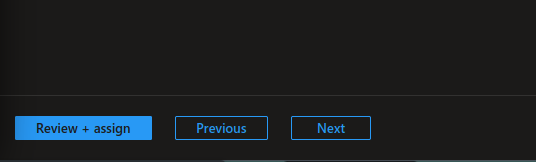
8. Now click the **Review + assign** button in the bottom left to create the role assignment.

<figure><img src="https://content.gitbook.com/content/cgDbLHPAHMe3kHJeobtk/blobs/YNAUh9qlLWGg9m1w2hwN/image.png" alt=""><figcaption><p>Finally, let's assign the role!</p></figcaption></figure>

### Setting up the data source in NannyML Cloud

Now you can use the details of the storage container to access your data within NannyML cloud.

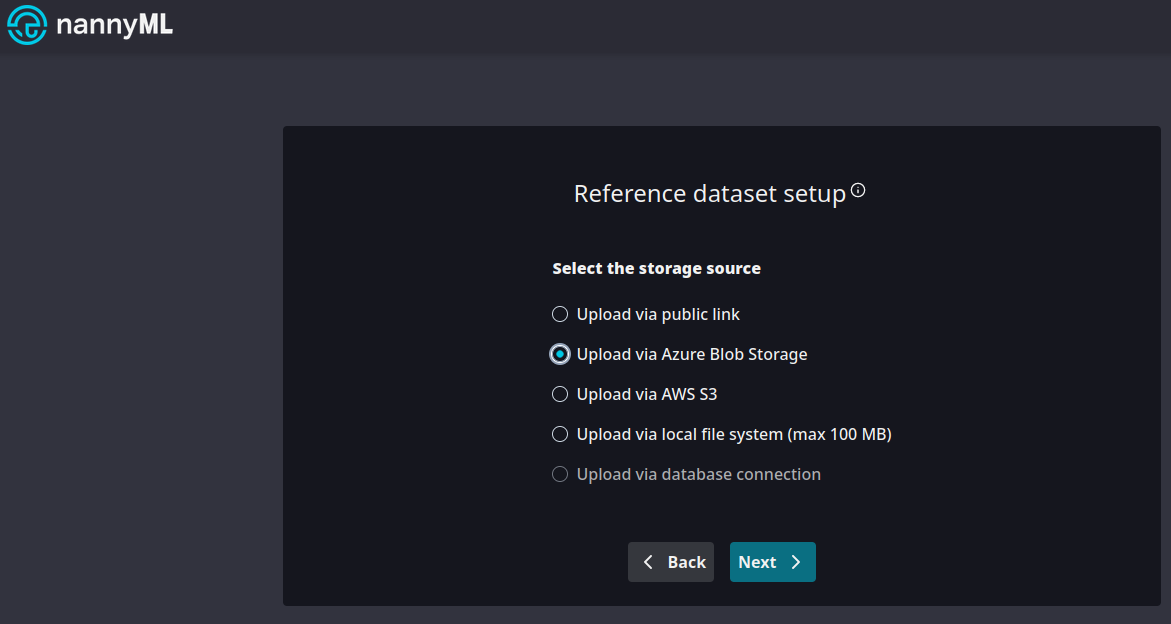
1. Set up a new model in NannyML Cloud. Select the **Upload via Azure Blob Storage** option.<br>

   <figure><img src="https://content.gitbook.com/content/cgDbLHPAHMe3kHJeobtk/blobs/yk9J6DL70Syju1eNs34K/image.png" alt=""><figcaption><p>Using Azure Blob Storage</p></figcaption></figure>

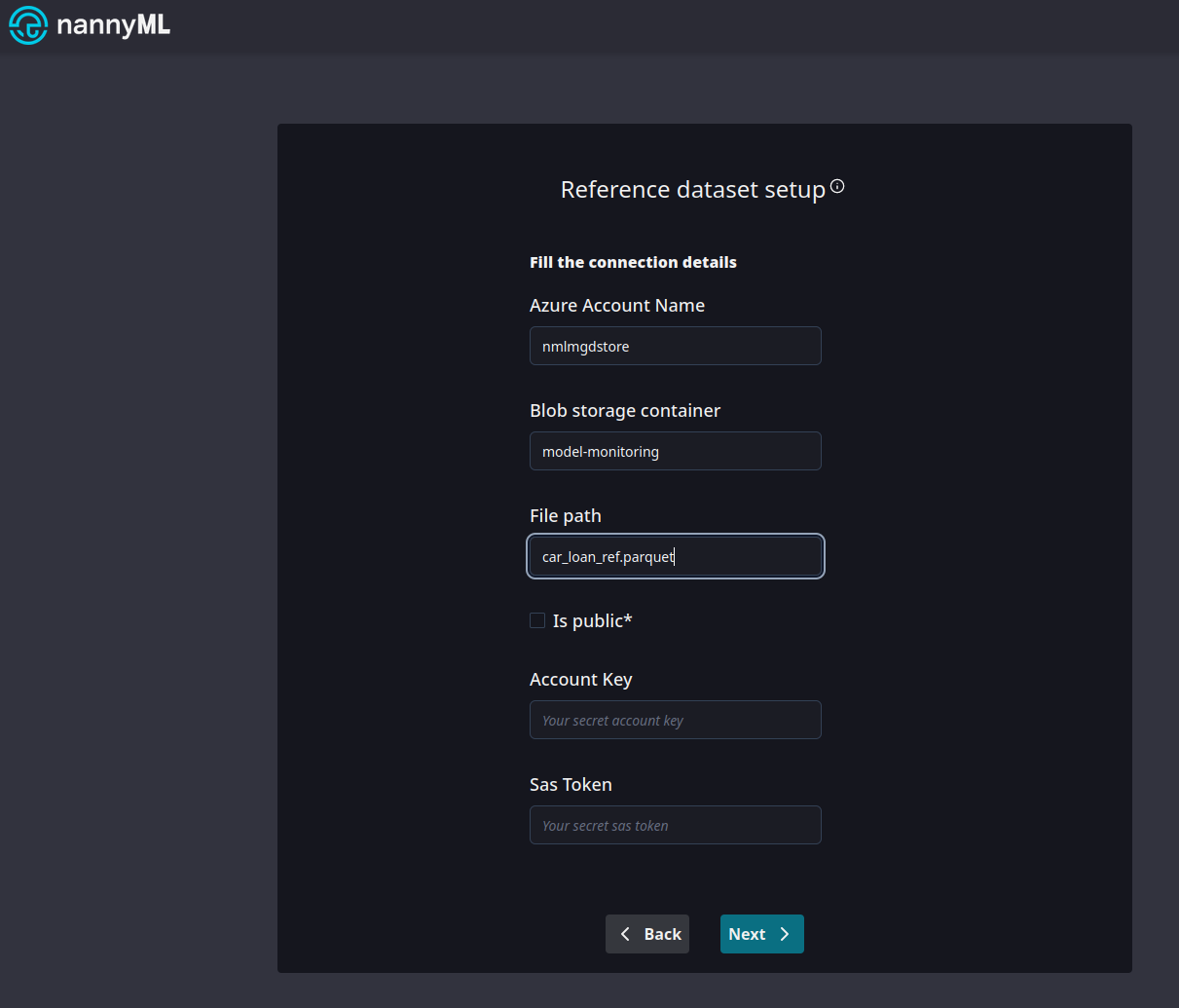
2. Now provide the details about the storage container we've just tweaked the access control for. \
   Note that we don't have to provide any kind of authentication token or key.<br>

   <figure><img src="https://content.gitbook.com/content/cgDbLHPAHMe3kHJeobtk/blobs/dj5f9QH6BFeK8sVOsmKb/image.png" alt=""><figcaption><p>Look mom, no credentials!</p></figcaption></figure>

3. We now have access to the file!\ <br>

   <figure><img src="https://content.gitbook.com/content/cgDbLHPAHMe3kHJeobtk/blobs/vqHOLrVxXVxrUiwJC2pt/image.png" alt=""><figcaption><p>All file details are available!</p></figcaption></figure>


---

# Agent Instructions: Querying This Documentation

If you need additional information that is not directly available in this page, you can query the documentation dynamically by asking a question.

Perform an HTTP GET request on the current page URL with the `ask` query parameter:

```
GET https://docs.nannyml.com/cloud/v0.22.0/deployment/azure/azure-managed-application/enabling-access-to-storage.md?ask=<question>
```

The question should be specific, self-contained, and written in natural language.
The response will contain a direct answer to the question and relevant excerpts and sources from the documentation.

Use this mechanism when the answer is not explicitly present in the current page, you need clarification or additional context, or you want to retrieve related documentation sections.