# Enabling access to storage

## Using role assignments

As a part of the deployment process, NannyML Cloud creates a managed identity aptly called **nannyml**.&#x20;

By granting that managed identity the correct roles and permissions, you can have the NannyML Cloud instance read data from a storage container!<br>

### Setting permissions on your storage account

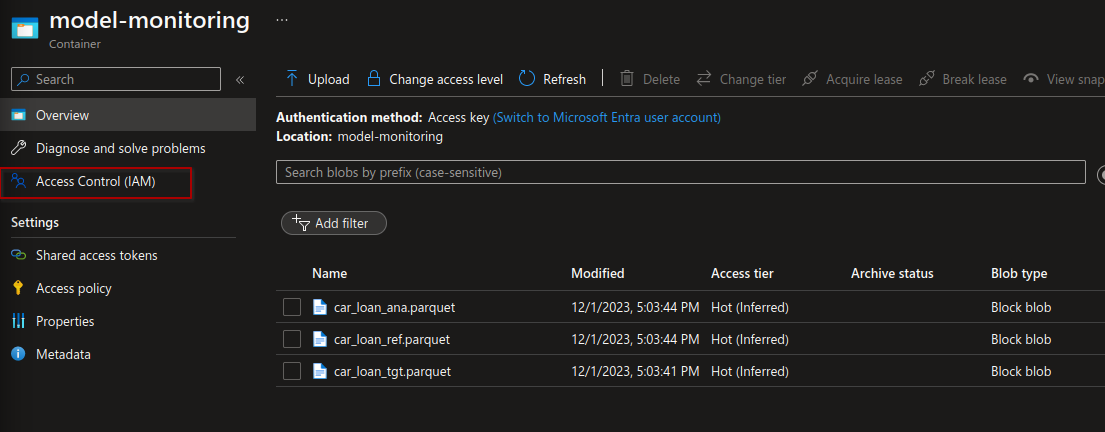
1. Navigate to your storage account using the Azure portal. In this example, we have a storage account with a container called **model-monitoring.** The access level has been set to private.\
   \
   There are three files present, representing reference data, analysis data, and target data.

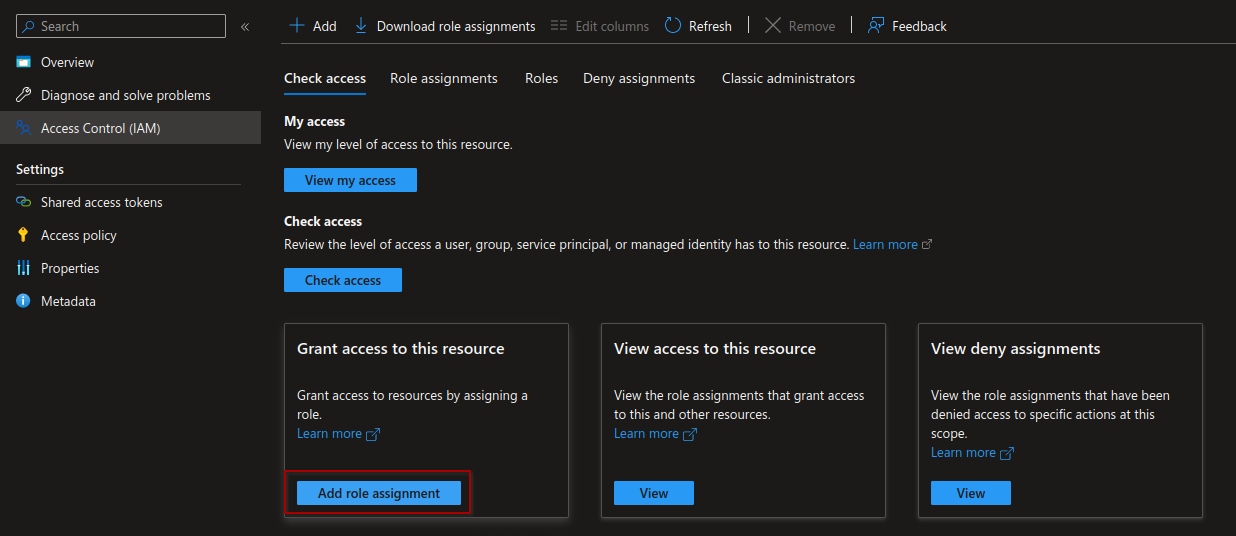
2. Navigate to the **Access Control (IAM)** pane.<br>

   <figure><img src="https://content.gitbook.com/content/wGuco8g4RjyWR8L8lmN8/blobs/AaBAEHeTGeWilH5iLXu9/image.png" alt=""><figcaption><p>Accessing the access control settings for our storage container</p></figcaption></figure>

3. Now click the **Add role assignment** button in the bottom left corner.<br>

   <figure><img src="https://content.gitbook.com/content/wGuco8g4RjyWR8L8lmN8/blobs/AAZ5R9jrKUrp1VNcSYj3/image.png" alt=""><figcaption><p>Navigating to the role assignment screen</p></figcaption></figure>

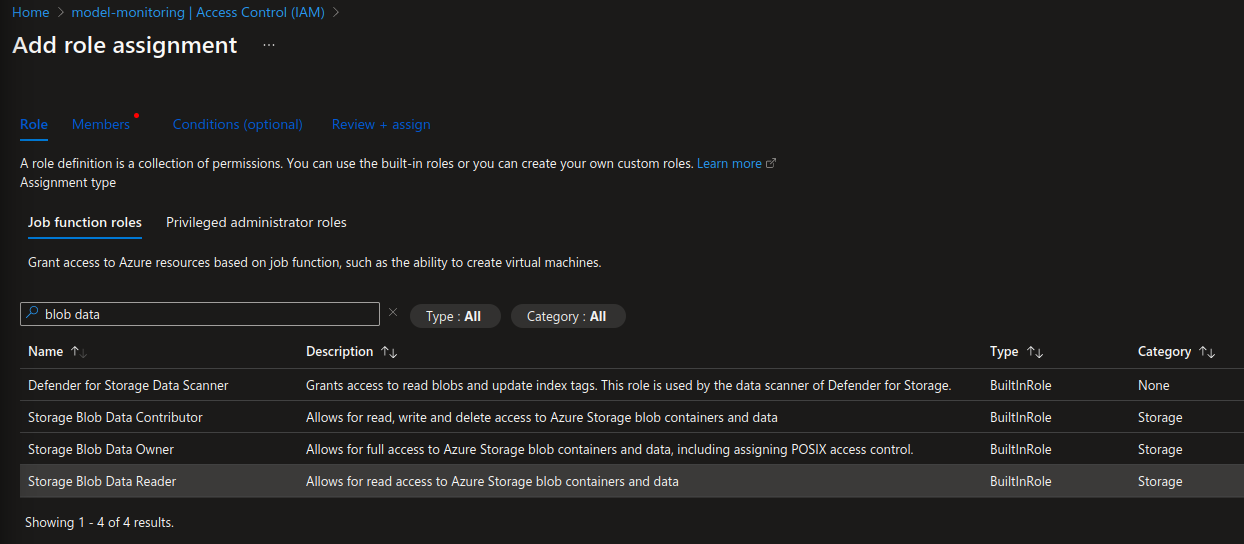
4. This window will give you a very long overview of available roles. You can select any applicable role here, but something like **Blob Data Reader** should give sufficient permissions to read the data in this storage container.\
   \
   Search for the role using the search bar, select it and hit the **Next** button in the bottom left corner.\ <br>

   <figure><img src="https://content.gitbook.com/content/wGuco8g4RjyWR8L8lmN8/blobs/3NkkbrshAdhzRHYSUFes/image.png" alt=""><figcaption><p>Selecting a role to assign</p></figcaption></figure>

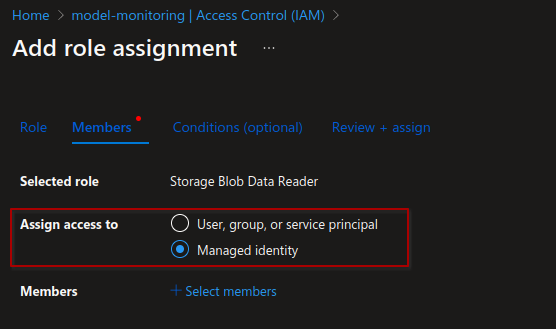
5. Now you'll select the member to assign the role to. In this case you'll assign it to a **managed identity**, so select that option. Then hit the **+ Select members** link to open up the search pane.\ <br>

   <figure><img src="https://content.gitbook.com/content/wGuco8g4RjyWR8L8lmN8/blobs/VzvKUjaIYngBv4vdIjPw/image.png" alt=""><figcaption><p>This is the managed identity you're looking for</p></figcaption></figure>

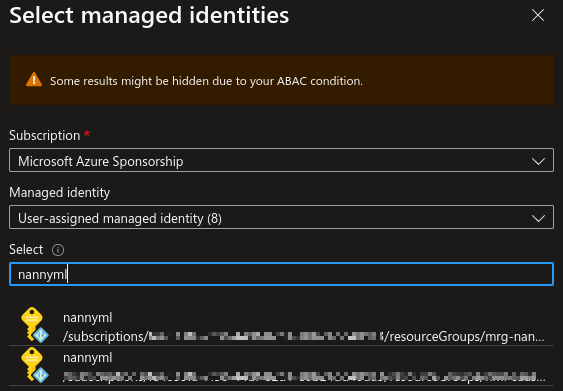
6. In the search pane, first, select the subscription under which the NannyML Cloud managed application was deployed.\
   \
   In the **Managed identity** dropdown, select the **User-assigned managed identity** option. \
   \
   Finally, in the search bar under the **Select** header, filter for **nannyml** and select the correct option.<br>

   <figure><img src="https://content.gitbook.com/content/wGuco8g4RjyWR8L8lmN8/blobs/oj0jitzTWVmXCCWzmSgd/image.png" alt=""><figcaption><p>Searching for the correct managed identity</p></figcaption></figure>

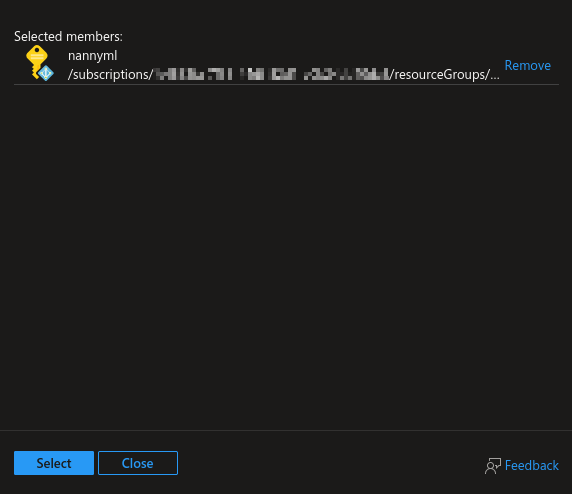
7. Confirm the selected member and hit the **Select** button.\ <br>

   <figure><img src="https://content.gitbook.com/content/wGuco8g4RjyWR8L8lmN8/blobs/3HOPy6Lm3j0C5i421Fq2/image.png" alt=""><figcaption><p>Confirming once more</p></figcaption></figure>

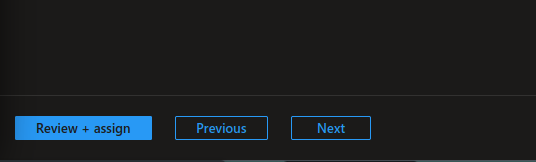
8. Now click the **Review + assign** button in the bottom left to create the role assignment.

<figure><img src="https://content.gitbook.com/content/wGuco8g4RjyWR8L8lmN8/blobs/NUO83crSVXLBc0vdvtzH/image.png" alt=""><figcaption><p>Finally, let's assign the role!</p></figcaption></figure>

### Setting up the data source in NannyML Cloud

Now you can use the details of the storage container to access your data within NannyML cloud.

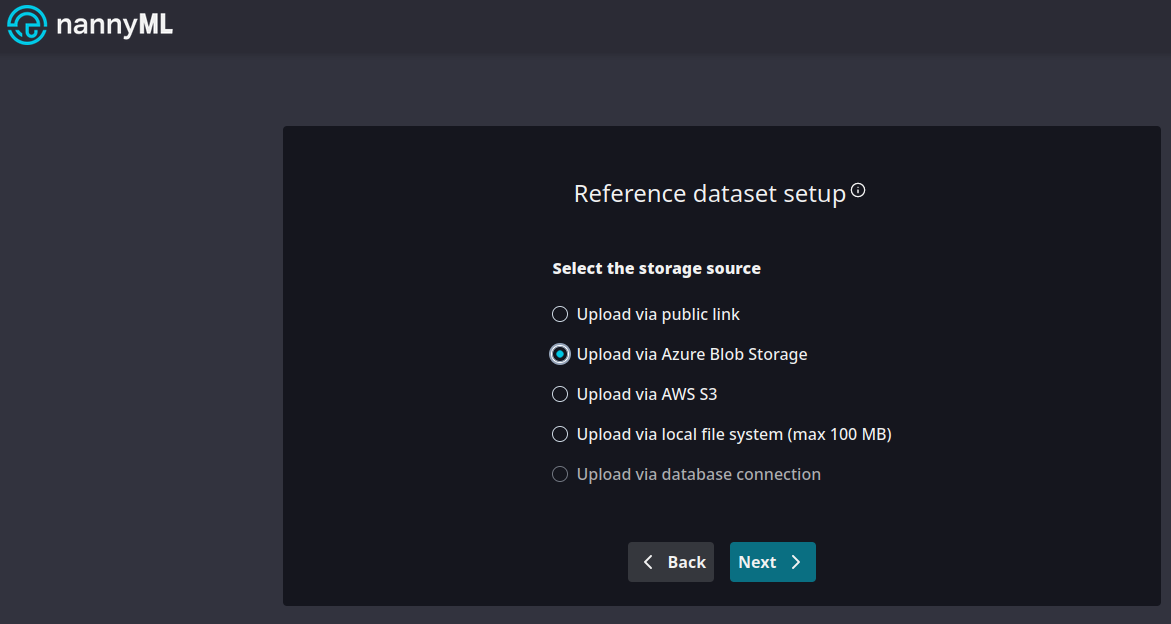
1. Set up a new model in NannyML Cloud. Select the **Upload via Azure Blob Storage** option.<br>

   <figure><img src="https://content.gitbook.com/content/wGuco8g4RjyWR8L8lmN8/blobs/H8pmsSwReUDwvYTjBjeF/image.png" alt=""><figcaption><p>Using Azure Blob Storage</p></figcaption></figure>

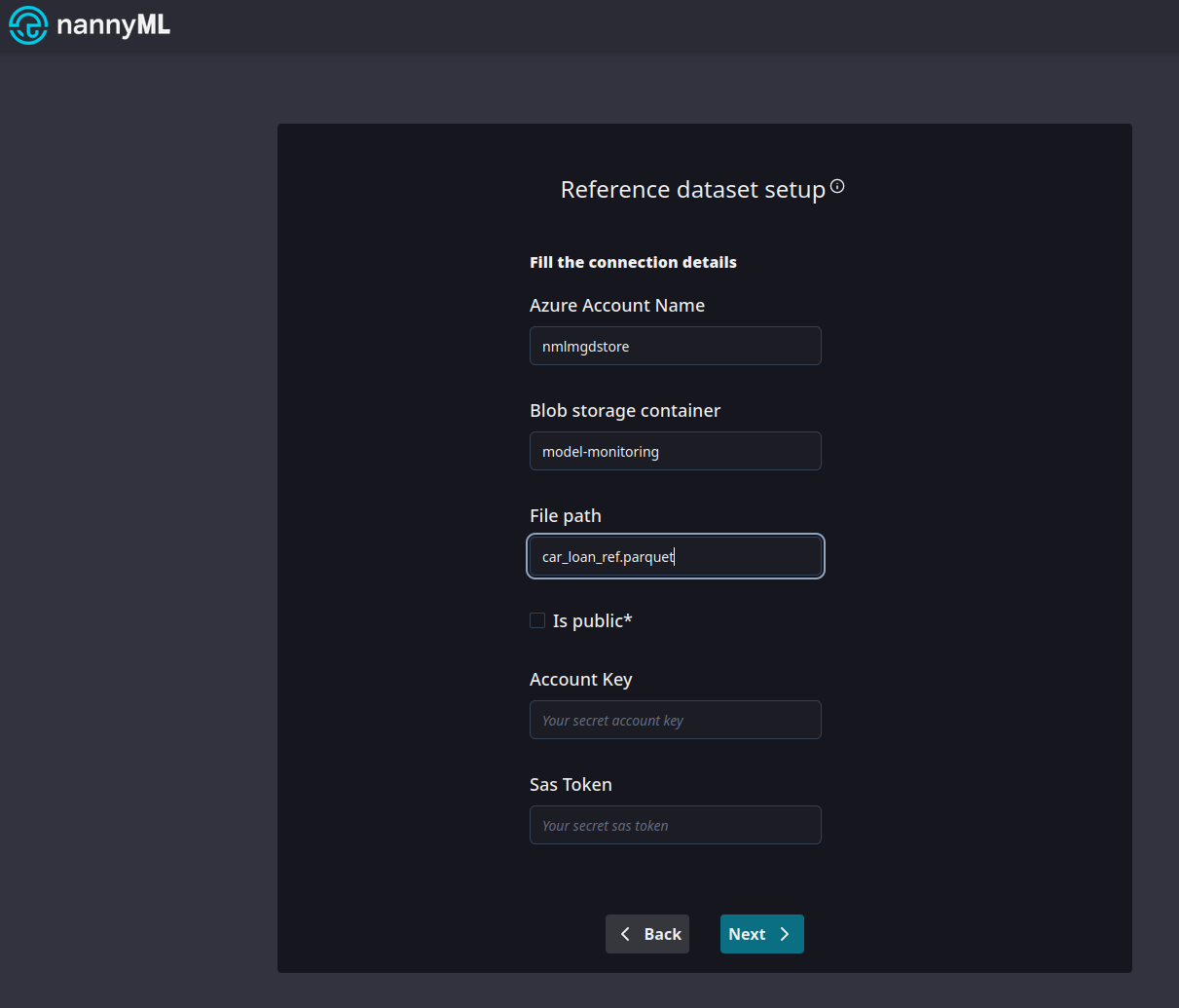
2. Now provide the details about the storage container we've just tweaked the access control for. \
   Note that we don't have to provide any kind of authentication token or key.<br>

   <figure><img src="https://content.gitbook.com/content/wGuco8g4RjyWR8L8lmN8/blobs/yMTlLU4uxjwVTLDAldWh/image.png" alt=""><figcaption><p>Look mom, no credentials!</p></figcaption></figure>

3. We now have access to the file!\ <br>

   <figure><img src="https://content.gitbook.com/content/wGuco8g4RjyWR8L8lmN8/blobs/Hiw6RSWVk5h6MpBJ2x7h/image.png" alt=""><figcaption><p>All file details are available!</p></figcaption></figure>