> For the complete documentation index, see [llms.txt](https://docs.nannyml.com/cloud/llms.txt). Markdown versions of documentation pages are available by appending `.md` to page URLs; this page is available as [Markdown](https://docs.nannyml.com/cloud/v0.24.1/deployment/application-setup/notifications.md).
# Notifications
On the Notifications tab, you can setup an email provider to send notifications from NannyML Cloud to the registered users. It is possible to:
* Disable the notifications
* Use the preconfigured third-party email provider
* Use your own SMTP server
## Disable notifications
Disable notifications settings means no notification will be sent through email.
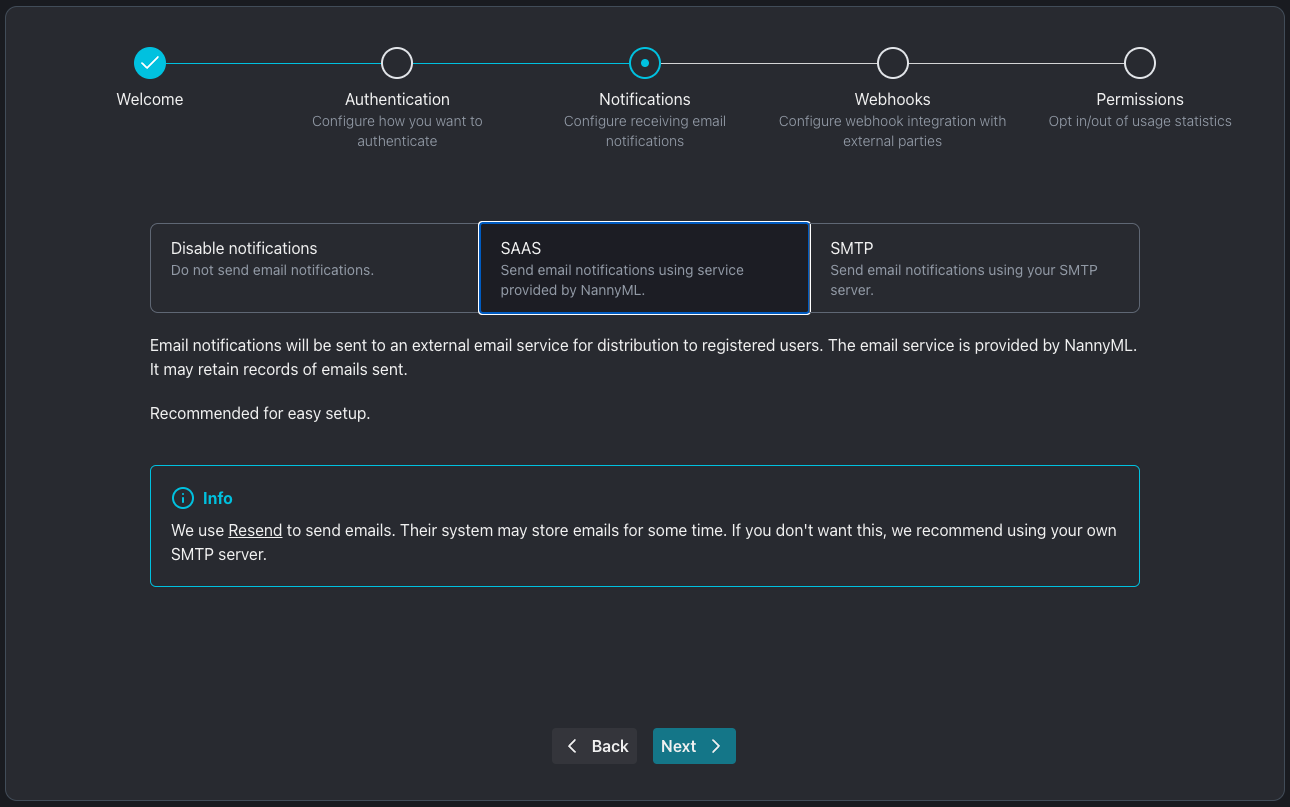
## SaaS
The SAAS option enables NannyML Cloud's preconfigured email provider. No further configuration is required.
{% hint style="warning" %}
NannyML Cloud uses Resend as a third-party email provider. Using this services means some of your model details might be shared with this provider and stored on their systems for some time. \
\
If you don't want this behavior, we recommend using your own SMTP server.
{% endhint %}
Configuring the SaaS notification provider
## SMTP
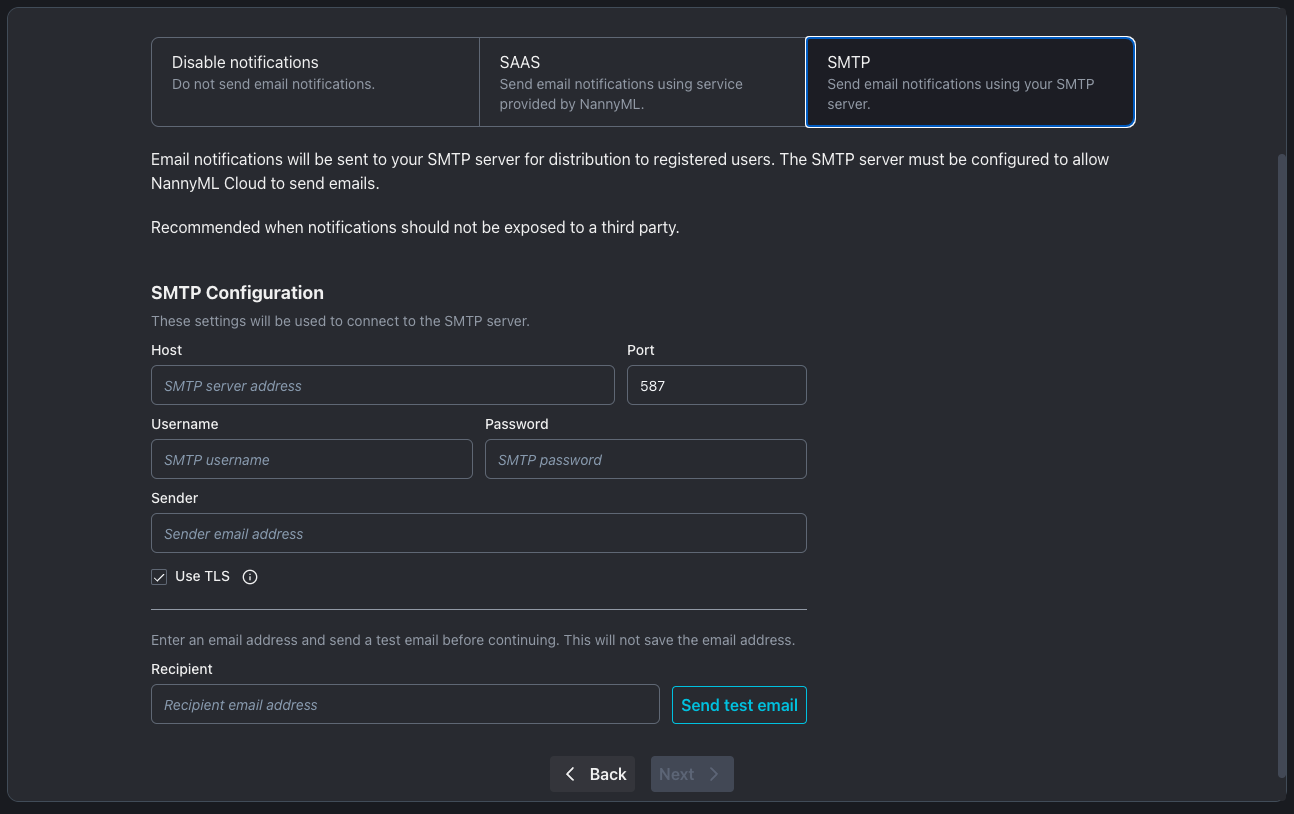
Selecting the SMTP setting allows you to specify a connection to your self-hosted, self-managed SMTP server. This might be required for privacy or organizational policies.
You must provide the following settings:
* **Host**: the host name of your SMTP server, e.g. `smtp.example.com`
* **Port**: the port number to connect to. The standard value is `587`, though `465` is also often used.
* **Username**: the username used to connect to the SMTP server, e.g. `nannyml`
* Password: the password used to connect to the SMTP server, e.g. `passw0rd`
* Sender: the email address used to send the email from, e.g. `nannyml-notifications@example.org`
Configuring the SMTP notification provider
After adding the SMTP configuration data, you can test by sending a test email. After providing the recipient email address, hit the **Send test email** button and check the recipient inbox. If the email arrives, your connection was set up correctly!